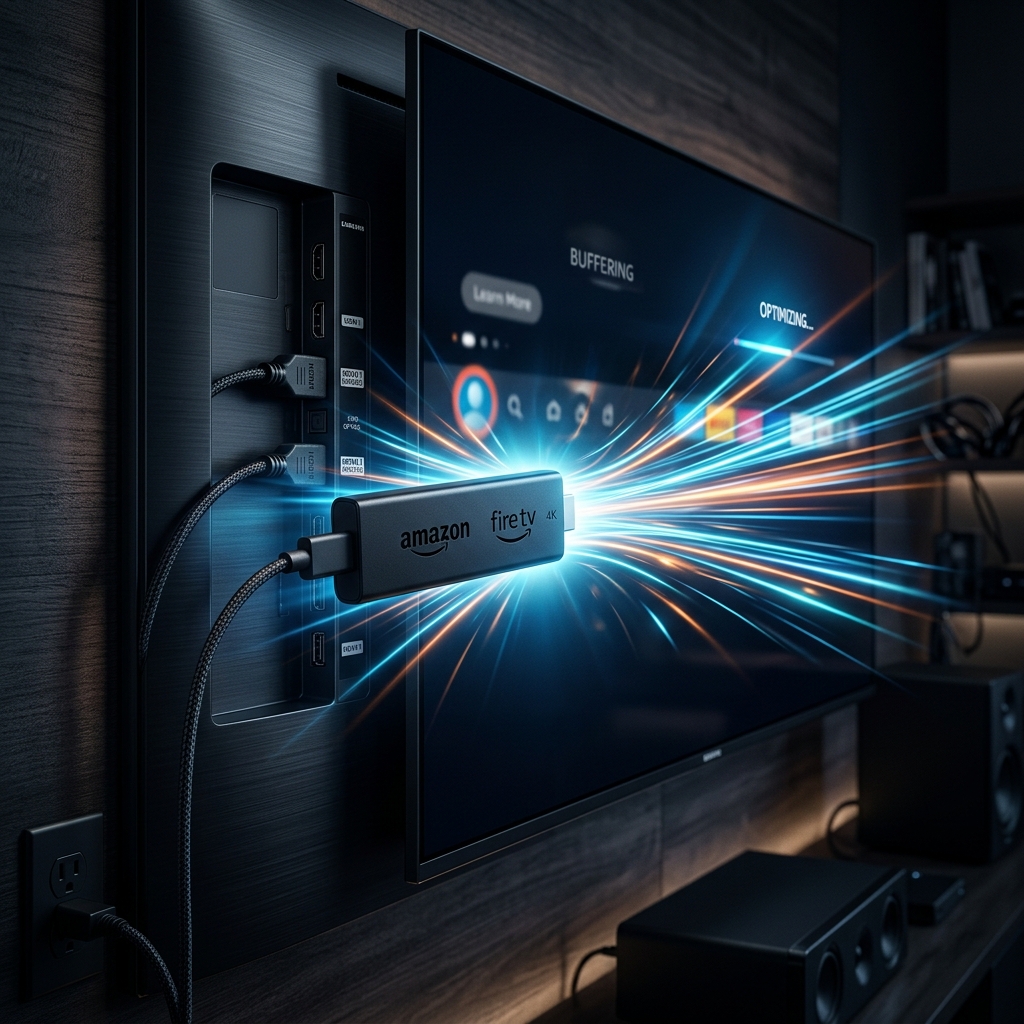
How to Stop Firestick Buffering for IPTV: Bypassing ISP Throttling in 2026
The Amazon Fire TV Stick (especially the Firestick 4K Max) is the most popular streaming device in the world. It is affordable, portable, and capable of rendering excellent 4K feeds. However, because it has limited processing power and memory compared to Nvidia Shields or smart TVs, it is often the first device to experience buffering wheels and lag when streaming high-bandwidth IPTV feeds.
If your stream frequently pauses or buffers, the issue is rarely your internet speed. More often, it is a combination of device congestion, application settings, or ISP bandwidth throttling. Here is our checklist to completely eliminate buffering on your Firestick.
1. Force Close Apps & Clear Cache
Every app you open on Firestick continues to run in the background, consuming RAM. If your RAM is full, your video player will buffer. Go to Settings > Applications > Manage Installed Applications. Open each background app (like Netflix, YouTube, or Prime) and click 'Force Stop', then 'Clear Cache'. Do NOT click clear data as that will delete your logins.
2. Change Your DNS to Cloudflare or Google
By default, your Firestick uses your local ISP's DNS servers, which can be slow and heavily audited. Switching to Cloudflare (1.1.1.1) or Google DNS (8.8.8.8) increases connection speed and allows your player to resolve stream links significantly faster. You can edit this under Settings > My Fire TV > About > Network by setting a static IP.
3. Bypass ISP Throttling With a Premium VPN
When you stream high-bitrate live video (like a 4K football match), your Internet Service Provider (ISP) detects the data load and automatically throttles your connection speed to preserve bandwidth. To stop this, install a secure VPN app on your Firestick. A VPN encrypts all data, hiding your streaming activity from your ISP and forcing them to route your traffic at full speed.
4. Enable Hardware Acceleration in Your Player
If you are using IPTV Smarters Pro or Tivimate, go to the application's settings and verify that 'Hardware Decoder' or 'HW' is selected instead of Software (SW) decoding. Hardware decoding forces the Firestick's dedicated graphic chip to process the H.265 compression codec, reducing lag and device temperature.
Pair Your Setup With an Premium Server Network
Even the most optimized Firestick will buffer if the provider's servers are overcrowded. Golden IPTV Pro uses intelligent geographic load-balancing and H.265 stream encoding to deliver stable, anti-freeze connections. Choose one of our plans today to experience smooth TV feeds on your Firestick.
Ready to experience reliable streaming?
Explore our subscription plans with enterprise-grade infrastructure and 24/7 technical support.
View Subscription Plans